
AlmaLinux 10: cockpit ships with Server, here is how to verify it
Test scope
Section titled “Test scope”An AlmaLinux 10.2 Server VM (@^server-product-environment) with cockpit 356-1.el10.
The console was reached through an SSH tunnel and driven by a real browser, so the figures are actual renders:
- login page:
public/evidence/cockpit/alma-login.png - overview:
public/evidence/cockpit/alma-overview.png
Server installs it for you
Section titled “Server installs it for you”$ rpm -q cockpit cockpit-ws cockpit-bridgecockpit-356-1.el10.x86_64cockpit-ws-356-1.el10.x86_64cockpit-bridge-356-1.el10.noarch
$ systemctl is-enabled cockpit.socketenabled$ ss -tlnp | grep 9090LISTEN 0 4096 *:9090 *:*It is socket activated:
$ systemctl cat cockpit.socket | grep -E "ListenStream|WantedBy"ListenStream=9090WantedBy=sockets.targetNo daemon runs while idle; the first connection to 9090 starts cockpit-ws. The Server environment also opens the firewall service:
$ firewall-cmd --list-servicescockpit dhcpv6-client sshA minimal install (349 packages) has none of this: install cockpit and run systemctl enable --now cockpit.socket.
The first thing after login is limited access
Section titled “The first thing after login is limited access”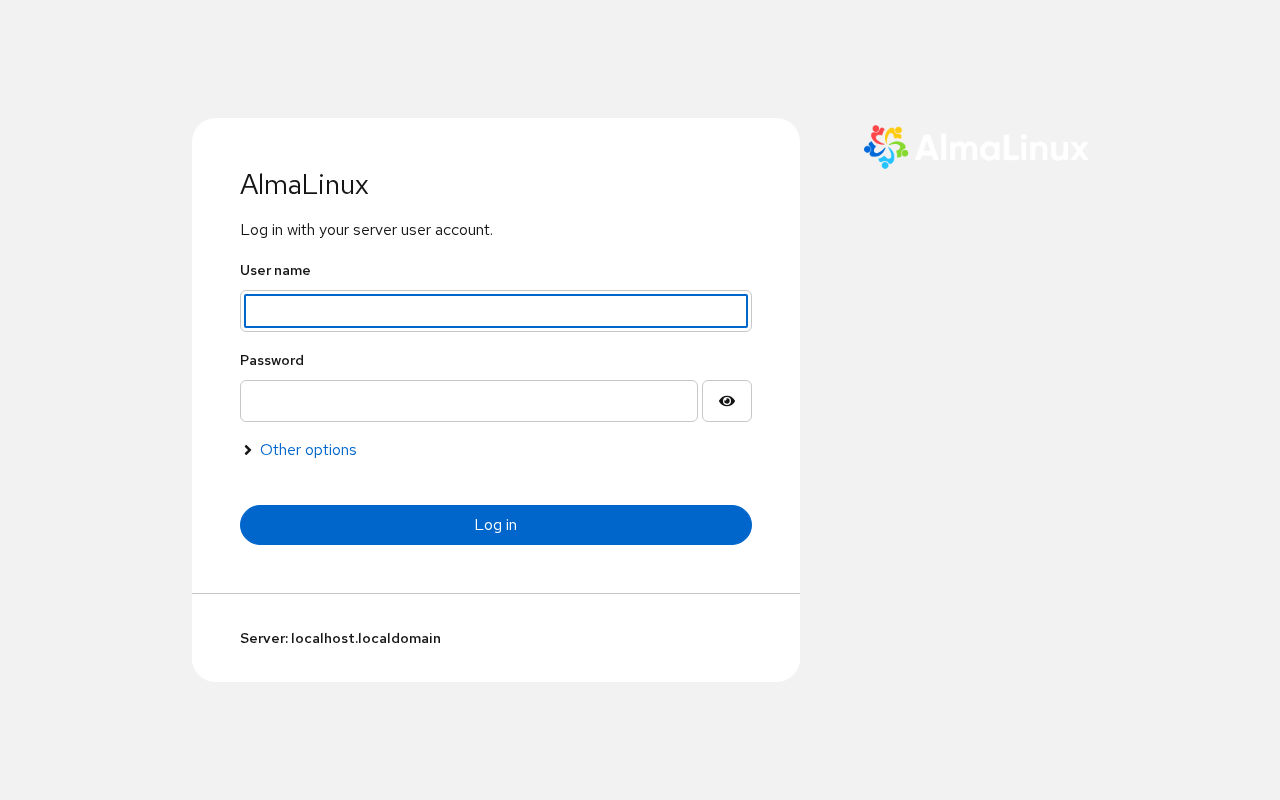
Logging in as an ordinary account (here labuser, already in wheel) shows a yellow banner:
Web console is running in limited access mode. — Turn on administrative access
Even a wheel user starts unprivileged; a click (equivalent to sudo for the session) is required before changing configuration or restarting services. That is by design, not a misconfiguration.
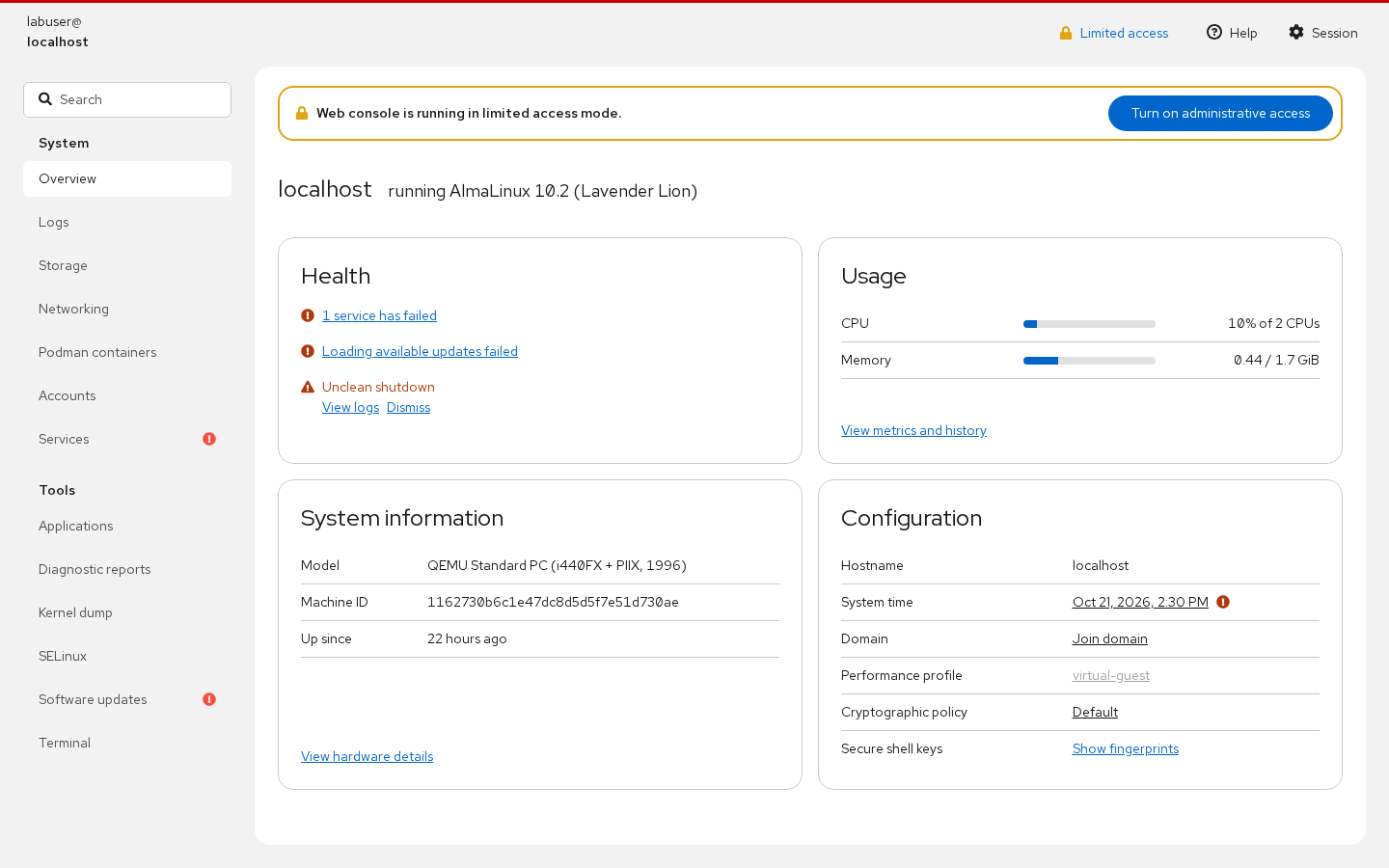
The overview already answers common questions: distribution and version, health warnings (failed services, update state, unclean shutdown), CPU and memory, machine model, machine-id, host time, performance profile and crypto policy.
The certificate appears at first start, not at install
Section titled “The certificate appears at first start, not at install”/etc/cockpit/ws-certs.d/ is empty right after installation; the self-signed pair is created when the service first starts:
$ ls -l /etc/cockpit/ws-certs.d/... 0-self-signed.cert... 0-self-signed.key
$ openssl x509 -in /etc/cockpit/ws-certs.d/0-self-signed.cert -noout -subject -datessubject=C=US, O=1162730b..., CN=localhostnotBefore=Oct 21 14:29:37 2026 GMTnotAfter=Nov 20 14:29:37 2027 GMT
Three consequences: browsers always warn, CN=localhost never matches an IP address, and the certificate expires after one year. Note also that /etc/cockpit/cockpit.conf does not exist by default — a missing config file does not mean nothing is configured.
Replacing the certificate
Section titled “Replacing the certificate”# cp server.crt /etc/cockpit/ws-certs.d/50-server.cert# cp server.key /etc/cockpit/ws-certs.d/50-server.key# chmod 600 /etc/cockpit/ws-certs.d/50-server.key# systemctl restart cockpit.socketcockpit sorts files in that directory and uses the last *.cert plus the matching .key, so a 50- prefix overrides 0-self-signed. The key must be mode 600 or it is ignored.
Triage order when the page will not open
Section titled “Triage order when the page will not open”1) systemctl is-enabled cockpit.socket # not enabled -> enable --now2) ss -tlnp | grep 9090 # not listening -> check cockpit-ws3) firewall-cmd --list-services | grep cockpit4) curl -k https://<host>:9090/ # works locally, not remotely -> network/firewall5) journalctl -u cockpit-ws -n 20 # certificate, port and auth errors land hereStep 4 separates “the service is broken” from “the path or certificate is broken”.
Common traps
Section titled “Common traps”- “Loading available updates failed” on an offline host: the red text means dnf cannot reach repositories (our lab has no default route); cockpit is fine;
- Treating limited access as a permissions bug: click the banner once;
cockpit-machinesis not installed by Server: add it if you need VM management;cockpit-podmanis included;- Replacing the certificate without restarting the socket: the old one stays in use.
Practice: verify from the CLI, not by guessing
Section titled “Practice: verify from the CLI, not by guessing”systemctl is-enabled cockpit.socketss -tlnp | grep 9090sudo firewall-cmd --list-servicescurl -k -o /dev/null -w "%{http_code}\n" https://127.0.0.1:9090/sudo ls -l /etc/cockpit/ws-certs.d/Checks:
- Socket enabled and 9090 listening;
- Firewall service list contains
cockpit; - Local
curl -kreturns 200; - The certificate directory holds
0-self-signed.cert(or your replacement).
常见问题
Can a minimal install run cockpit?
Yes, but you install the package and enable the socket yourself; the Server environment only pre-installs it and opens the firewall.
Can I restrict who may log in?
Use allowed-users in /etc/cockpit/cockpit.conf together with PAM rules, and limit sudo rights in sudoers.
Is exposing 9090 to the internet safe?
Not advisable. Keep it on a private network or behind a VPN, ideally with a reverse proxy and strong authentication.
Next steps
Section titled “Next steps”- Journal and services: /en/journald-logging/
- Firewall rules: /en/firewalld-zones/
- Containers: /en/containers/